
How to open and view a CSV file - CSV Editing
CSV files are essentially structured text files (see What is a CSV file), which makes them easy to open in many applications. You can use a simple text editor like Notepad or a spreadsheet program like Excel, but these tools are not designed to act as a CSV viewer, especially when working with large CSV files. Once loaded, data may be hard to read, slow to navigate, or even altered automatically.
Spreadsheet applications such as Microsoft Excel, OpenOffice Calc, or Google Sheets are excellent for spreadsheets, but they are not text editors (see: A Better Excel Alternative for CSV Files). They often interpret or modify data, which can lead to formatting issues or upload errors.
For the most reliable results, it is recommended to open and view your CSV files in a dedicated CSV viewer and text editor.
In this article, we explain how to open and view CSV files in Rons Data Edit, our professional CSV editor designed specifically for structured text data. It is simple to get started, fast even with large files, and packed with powerful viewing and editing tools.
With its crisp grid display (optimized for high‑DPI monitors) and a wide range of viewing features like Filtered Views, Constructed Views, Page‑per‑Row, Summaries, and Graphs, Rons Data Edit is also an excellent CSV viewer.
Opening a CSV File in Rons Data Edit
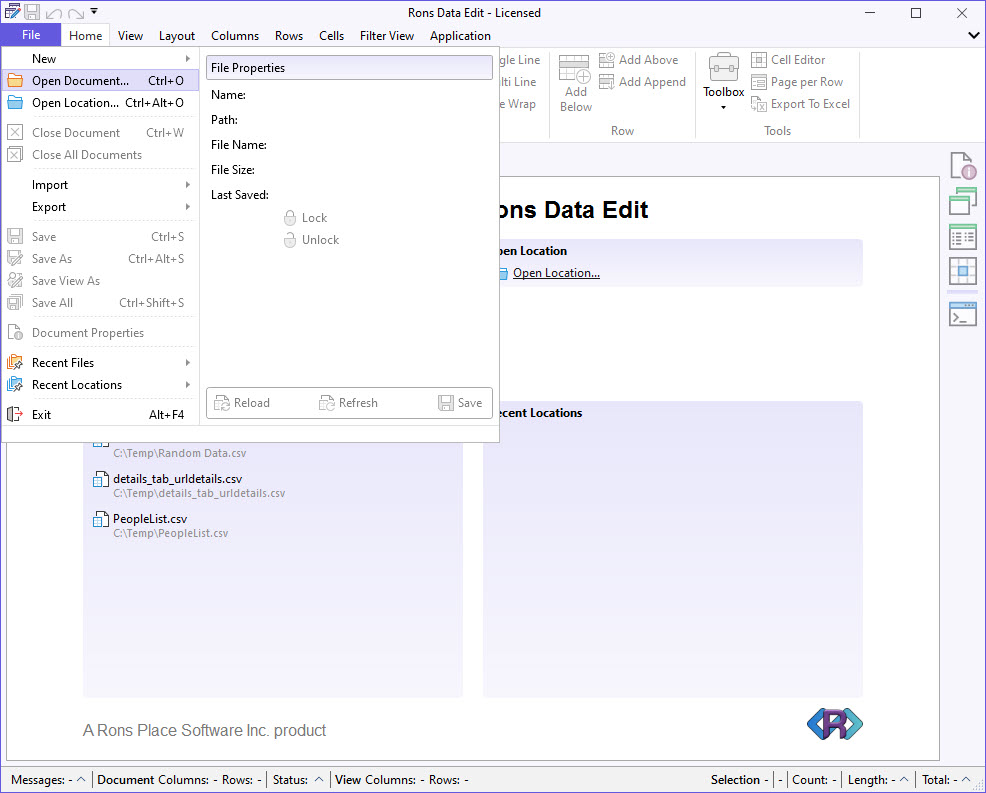
1. Open Document
Once Rons Data Edit is installed, CSV files can also be opened directly from Windows Explorer by right‑clicking the file, selecting Open with…, and choosing Rons Data Edit. If it does not appear in the list, select Choose another app to find it.
To always open CSV files with Rons Data Edit, tick Always use this app to open .csv files in the pop‑up window.
From within Data Edit a CSV file can be opened using File → Open Document, or by clicking Open Document on the Start Page and selecting the file.
2. Open Location
You can also open an entire folder of CSV files before selecting a specific file.
Choose Open Location instead of Open Document, then select the folder in the directory tree.
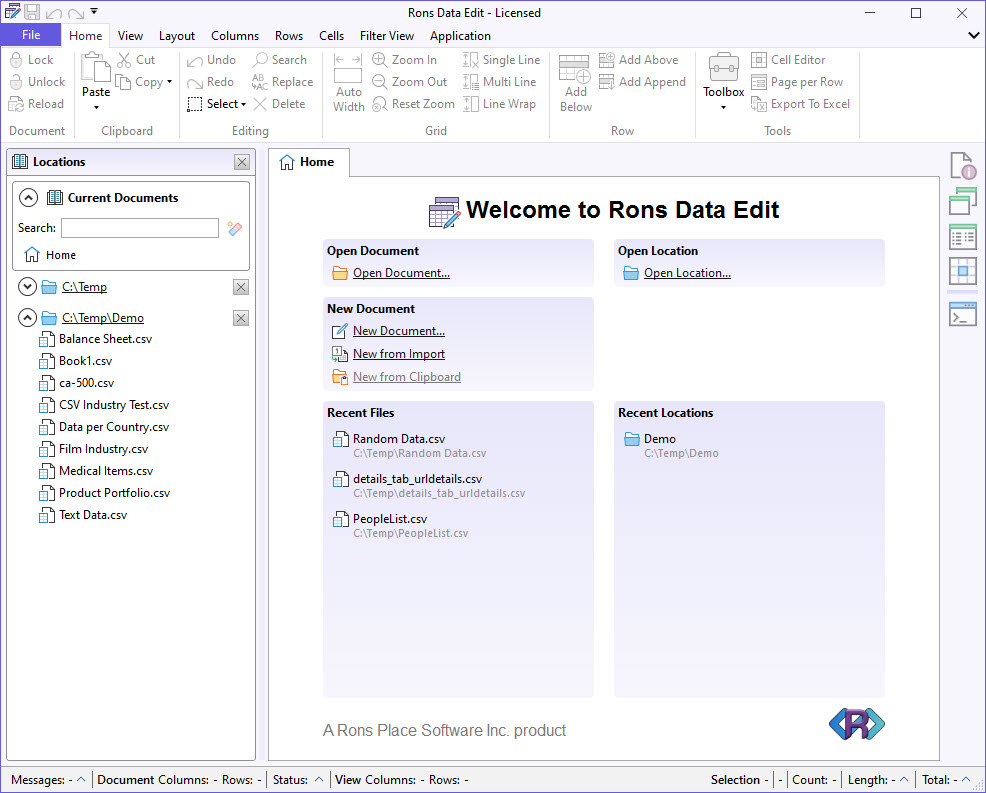
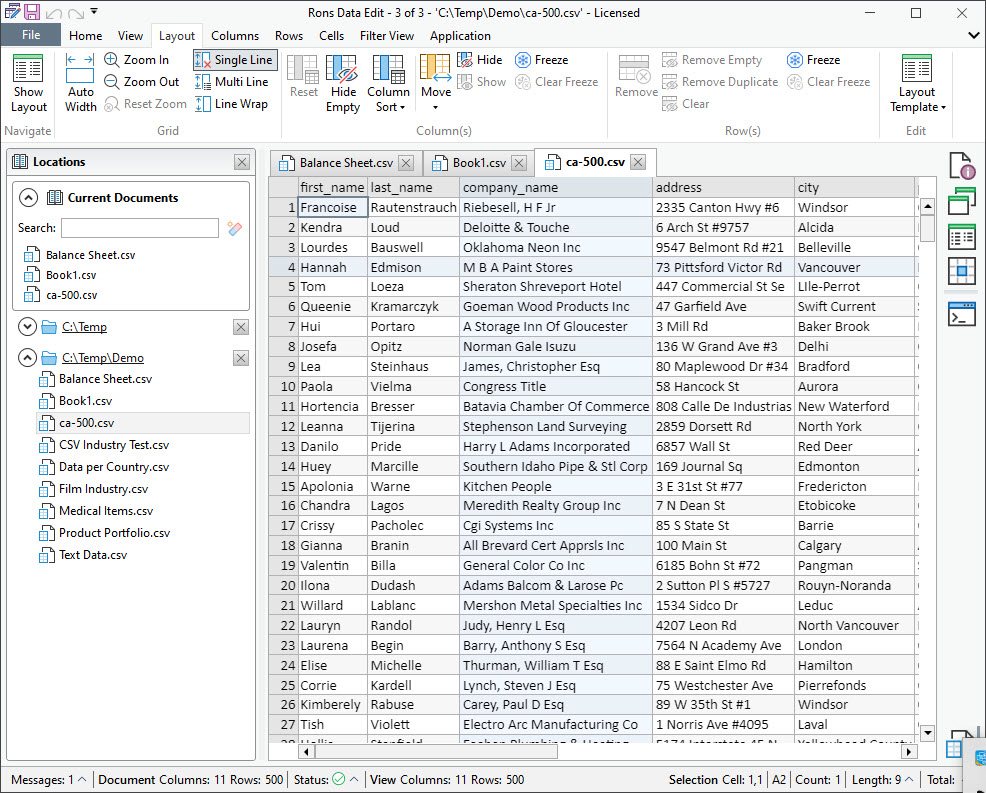
This is especially useful when working with groups of files, as the directory tree remains visible on the left side of the screen.
3. Recent Files and Locations
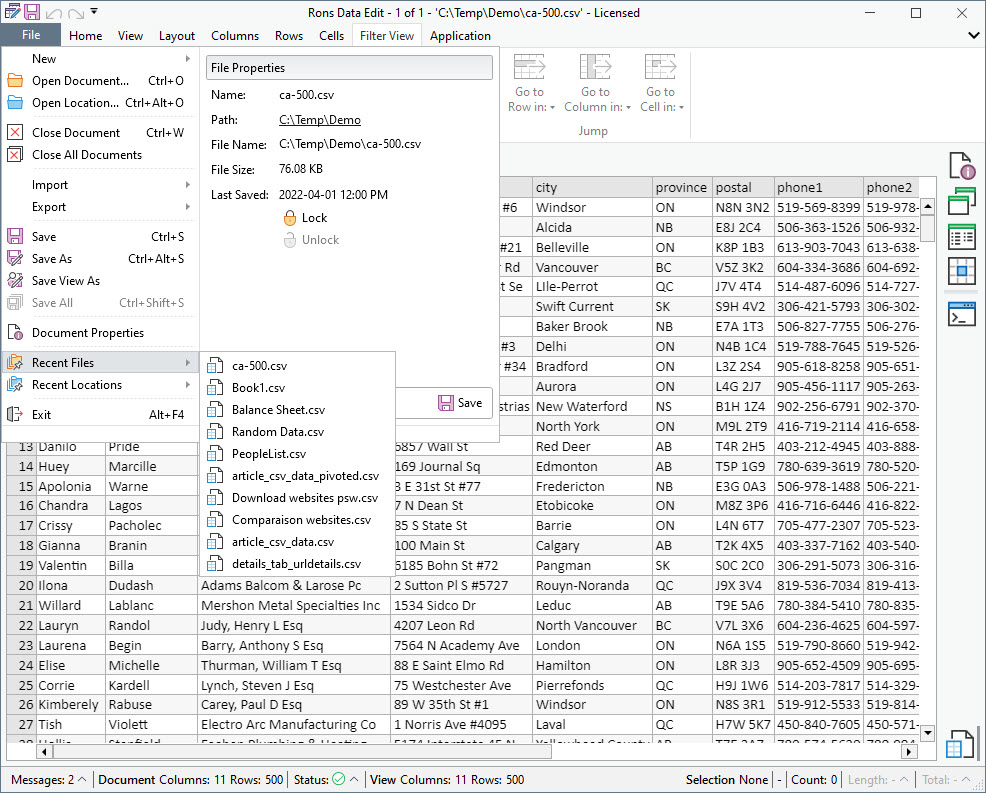
Recent Files and Recent Locations appear on the Start Page for quick access. They are also available under File → Recent Files and File → Recent Locations.
Viewing a CSV File in Rons Data Edit
A good CSV viewer must be fast, responsive, and display a clear, readable grid.
Rons Data Edit is optimized for performance, allowing smooth scrolling through thousands, or even million of rows. The interface is designed to remain crisp and readable on all monitor sizes and resolutions.
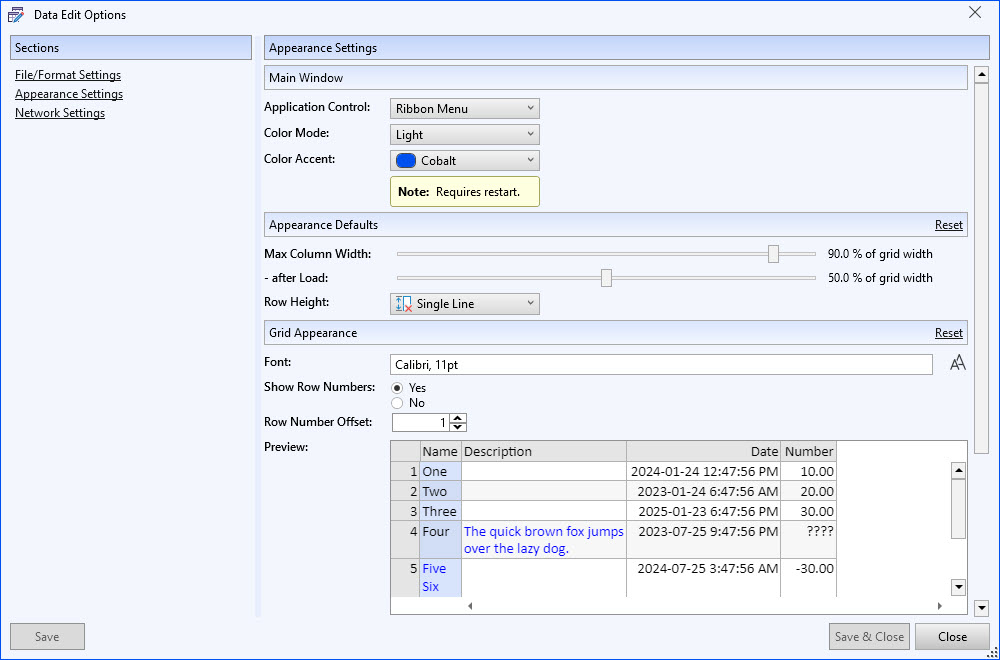
1. Appearance Settings
Personal preferences matter.
Under Options → Application, you can switch between Light and Dark Mode, choose an accent color, and adjust fonts and font sizes.
2. Viewing Options
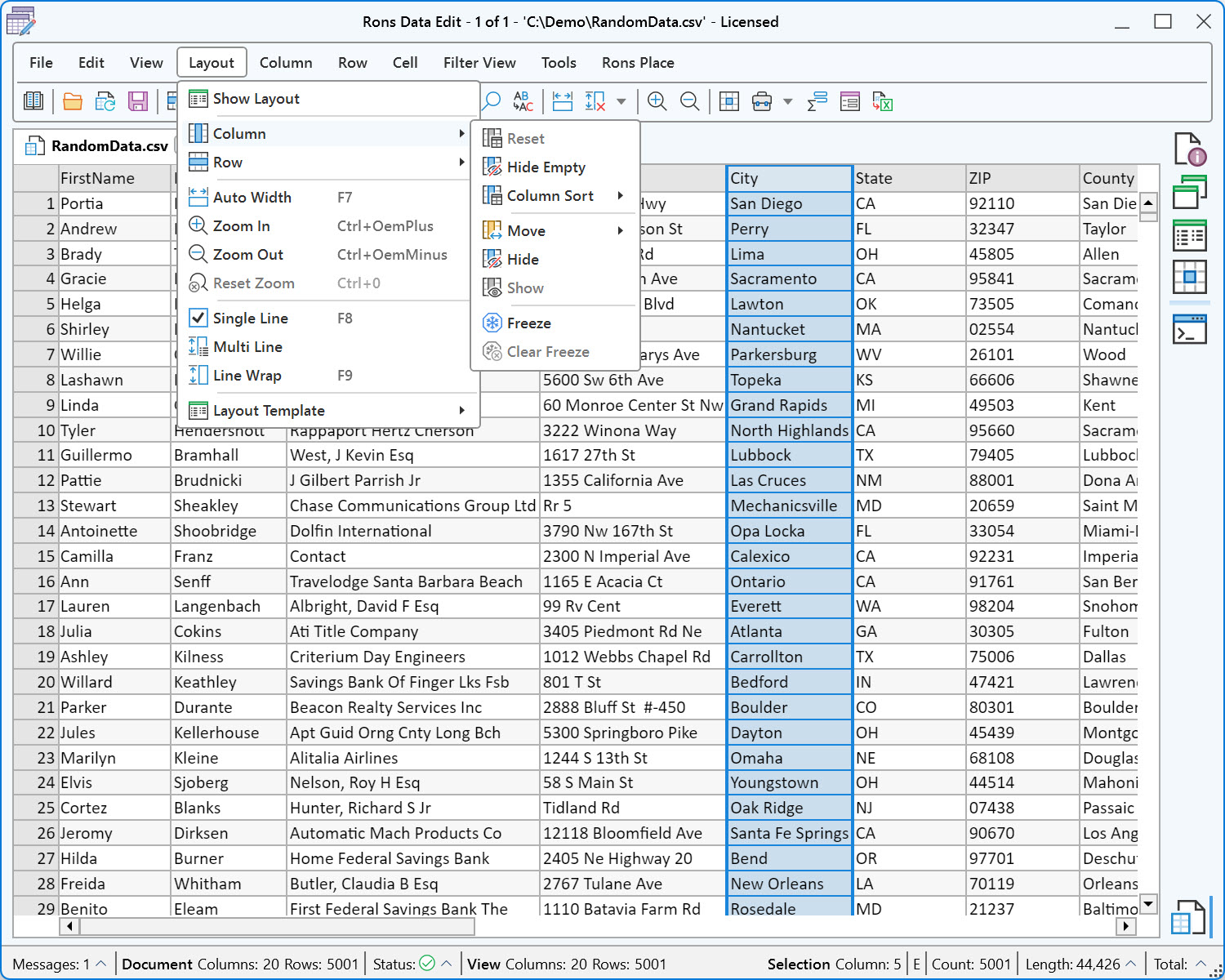
Rons Data Edit includes many viewing tools:
- Zoom in/out
- Single or multiple cell line display
- Show/Hide columns
- Freeze columns
- Filter rows
- Page‑per‑Row view
3. Filter Views
Filtering is one of the strengths of Rons Data Edit.
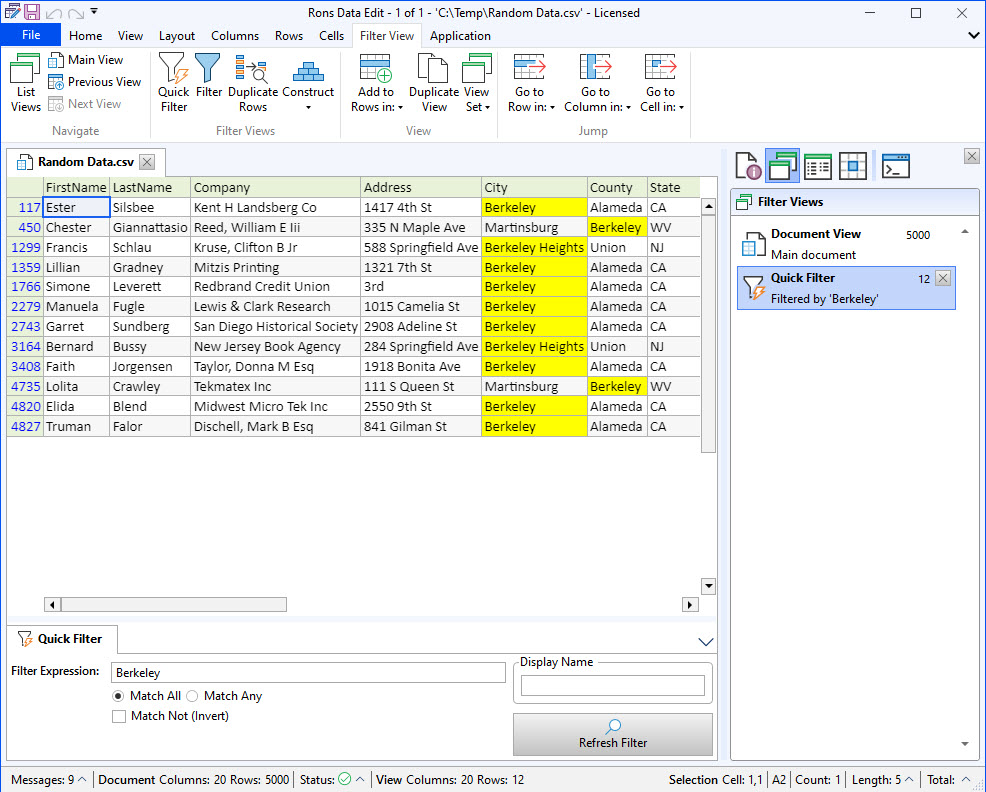
The Filter View panel displays all active filters, allowing you to create multiple filtered views without altering the original document.
You can save any filtered view as a New View or New Document via right‑click or through the File menu.
Quick Filter searches for a single term.
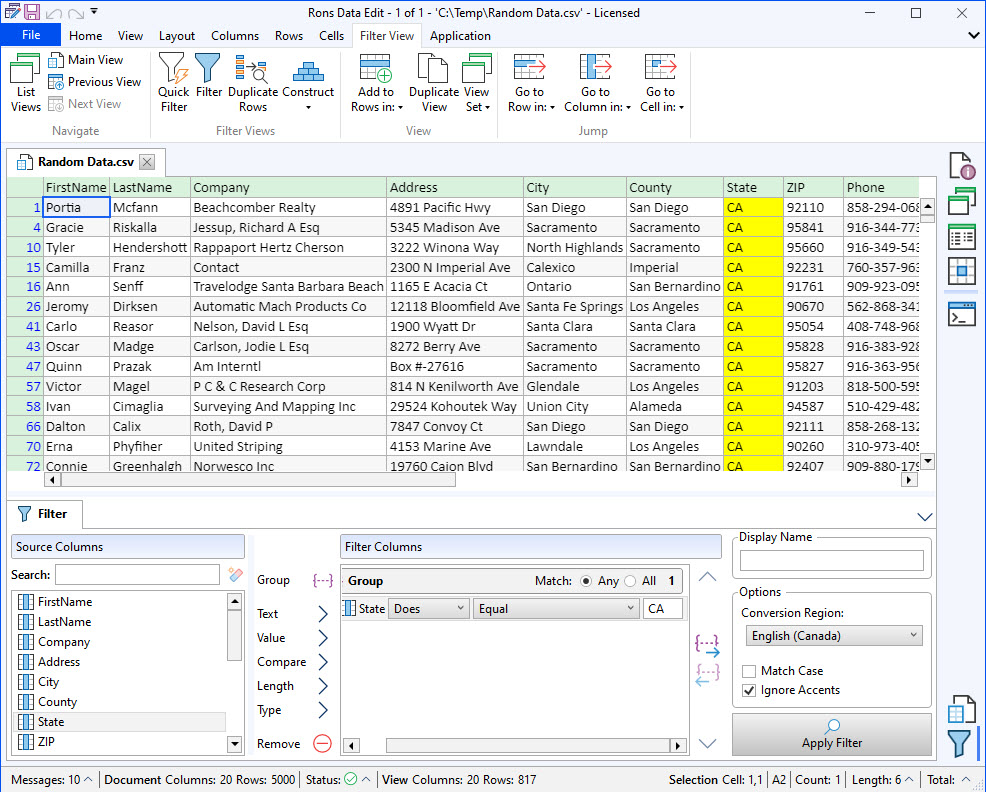
Filter allows more advanced rules and conditions.
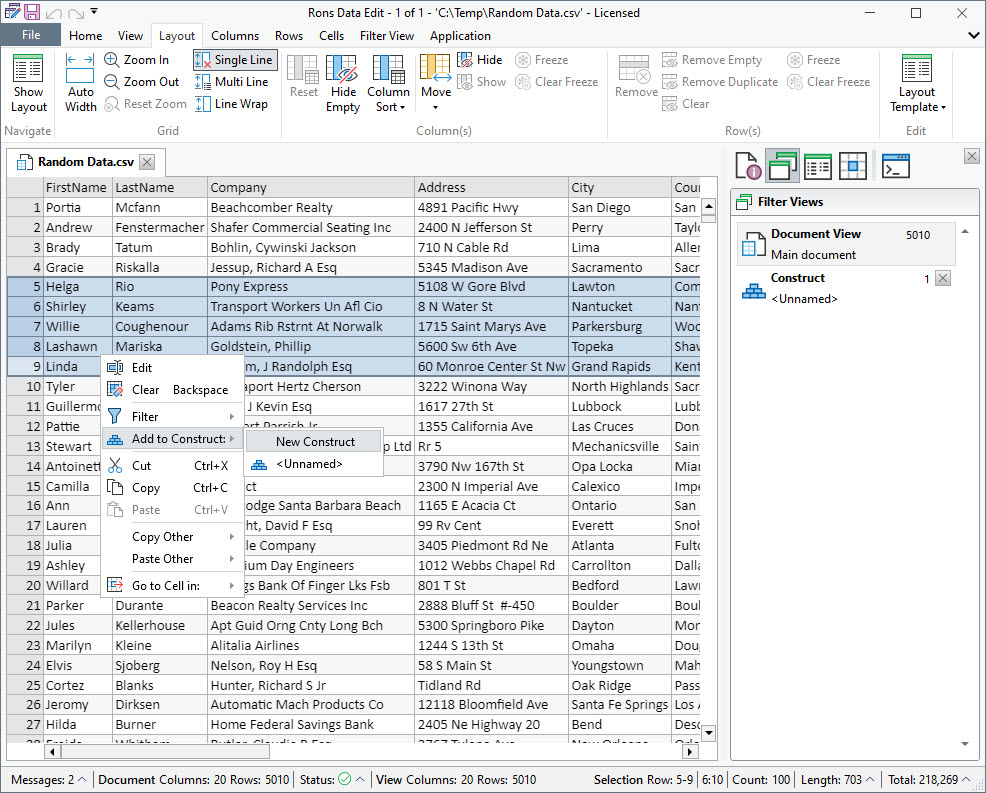
4. Construct Views
The Construct feature lets you manually build a custom view. This is very useful for grouping specific rows, creating bookmarks, or assembling data from multiple filters.
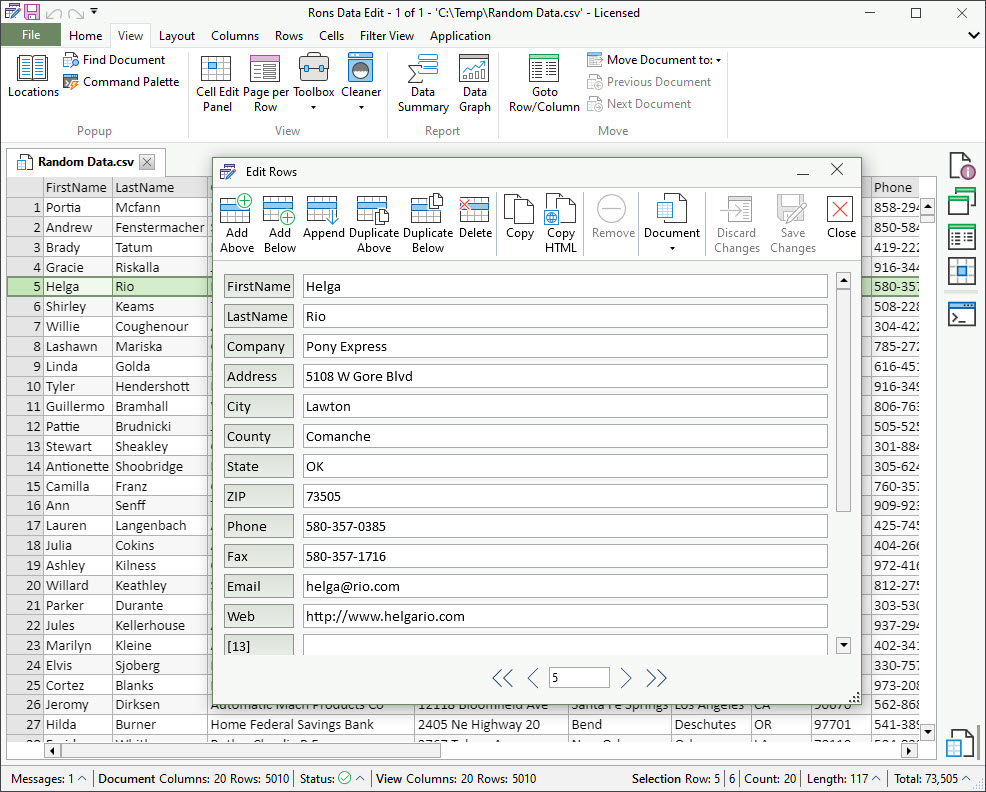
5. Page per Row
Page per Row displays each row as a formatted page, making it easier to read long or complex rows.
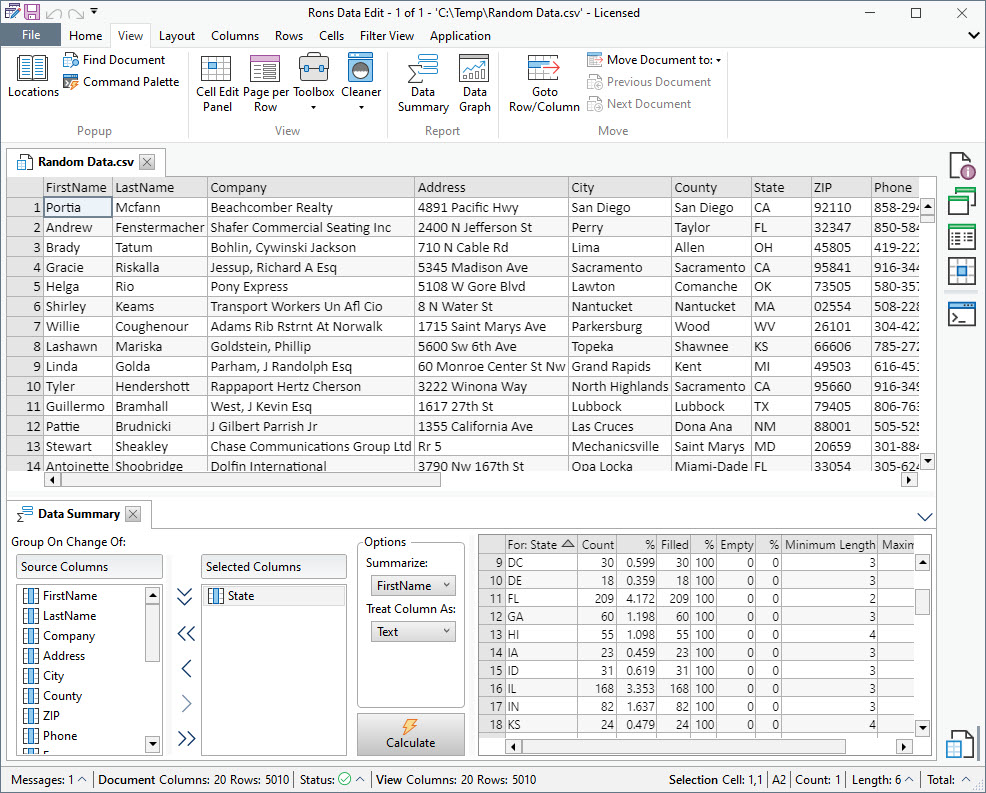
6. Data Summary
The Data Summary tool provides quick insights and basic analysis of your data.
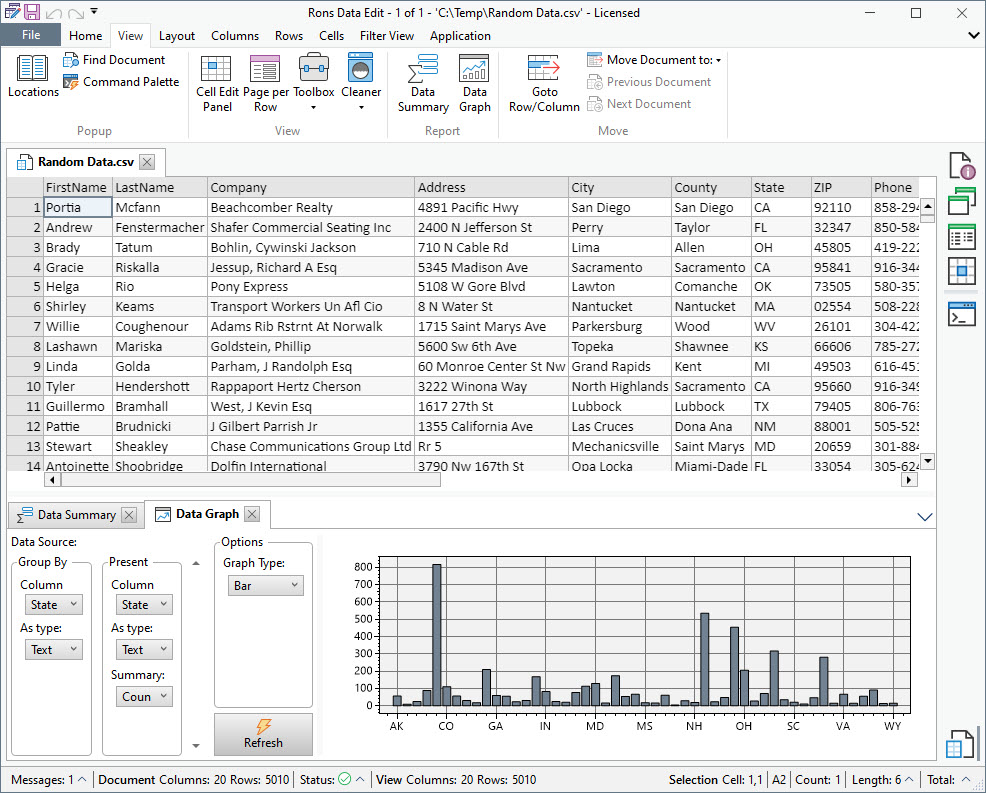
7. Data Graph
The Data Graph tool visualizes your data directly inside Rons Data Edit.
Finally
Do you have a question or feedback? We’d love to hear from you.
Send us a message via the Rons Place Software Contact Form and we will get back to you shortly.
Related Information
- A Perfect Excel alternative to handle CSV files
- How to open and view a CSV file
- Rons Data Edit for e-Commerce
- Text Encoding and Languages in CSV Files
- What is a CSV File
- What is the best CSV Editor
- What is the Difference between Rons Data Edit and Rons Data Stream
CSV Editing
Rons Data Edit


