
A Perfect Excel alternative to handle CSV files - CSV Editing
If you work with CSV files regularly, you’ve probably noticed that Excel doesn’t always behave the way you expect. It’s convenient and familiar, but CSVs are plain text, and Excel is built for something very different: spreadsheets, formulas, and formatting. That mismatch explains most of the strange issues people run into.
This article walks through why Excel struggles with CSVs and why a dedicated text‑based editor like Rons Data Edit avoids those problems entirely.
The Confusion
Excel looks like a table editor, so it’s easy to assume it should be good at editing CSVs. But under the surface, Excel is a calculation engine. Every value you load is interpreted, typed, formatted, and stored with metadata. That’s great for formulas, but not for raw text.
CSV files, on the other hand, are simple: characters separated by delimiters. No formatting. No types. No metadata. When a spreadsheet tool opens a text‑based format, the friction shows.
Why Editing CSVs Requires the Right Tool
Excel is convenient, but it often modifies CSV data in ways that aren’t obvious:
- Dates get auto‑formatted
- Leading zeros disappear
- Encodings shift
- Delimiters depend on your region
- Large files slow everything down
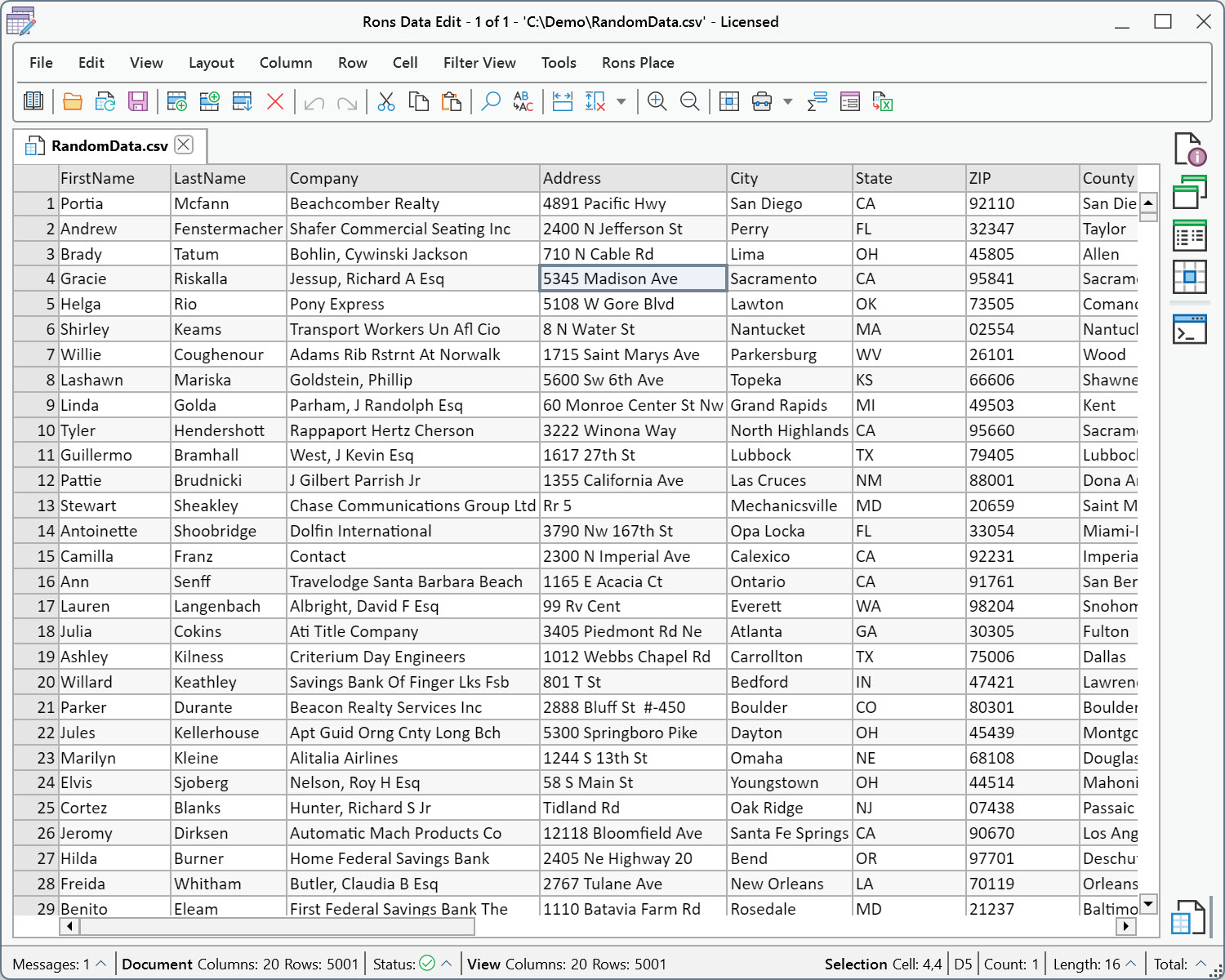
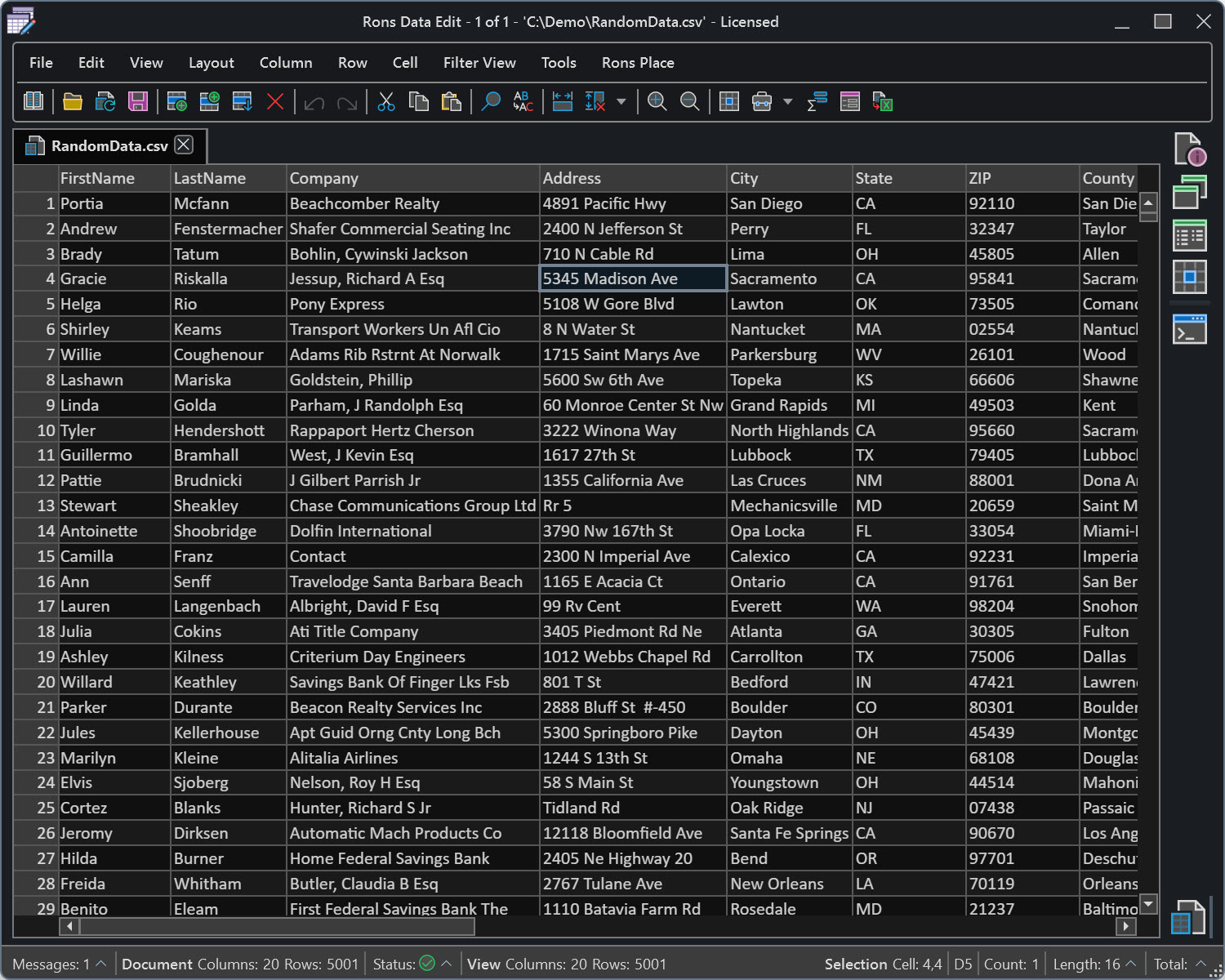
Rons Data Edit takes a different approach: it treats CSVs as structured text. No assumptions, no conversions, no hidden formatting. What’s in the file is exactly what you see.
Why Excel Breaks CSVs
Here’s what’s actually happening behind the scenes.
Automatic Type Guessing
Excel tries to infer meaning from every value:
- 00123 → becomes 123
- 03-04 → becomes a date
- 1E10 → becomes scientific notation
Once Excel converts a value, the original text is gone.
Formatting vs. Actual Data
Excel stores formatting separately from the underlying value.
When you save as CSV, all formatting is discarded, and the raw text may not match what you saw.
Regional Settings
Your system locale affects:
- delimiters
- decimal separators
- date interpretation
A valid CSV can load into a single column if your region expects a different delimiter.
Encoding
Excel’s default encoding varies by version and platform. This is why characters like "é" sometimes come back as "é".
Large Files
Excel recalculates constantly. CSV editors stream text. The difference becomes obvious once your file grows.
The result: failed imports, corrupted SKUs, broken characters, and time spent figuring out issues that weren’t your fault.
A Better Way to Work With CSV Files
A dedicated CSV editor avoids these problems by treating CSVs as text first.
- reads the file exactly as written
- preserves every character
- avoids type coercion
- respects your delimiter and encoding
- stays stable with large files
Because it’s built for text workflows, common tasks become simpler:
- cleaning columns
- preparing imports
- fixing formatting issues
- working with multilingual data
- handling large datasets
If you work with product feeds, financial exports, marketplace imports, or logs, the difference is immediate. You spend less time repairing damage and more time working with clean data.
Ready to Work with CSVs More Safely?
If you need a tool that handles CSVs predictably, you can try Rons Data Edit.
A free Lite version is available.
 -
-
If you want to go deeper, the related articles offer practical guidance for real‑world CSV workflows.
Related Information
- A Perfect Excel alternative to handle CSV files
- How to open and view a CSV file
- Rons Data Edit for e-Commerce
- Text Encoding and Languages in CSV Files
- What is a CSV File
- What is the best CSV Editor
- What is the Difference between Rons Data Edit and Rons Data Stream
CSV Editing
Rons Data Edit


