
How To Configure Delimiters and File Associations - Rons Data Edit
In this article, we explain how to configure delimiters, Data Profiles, and file associations in Rons Data Edit. If a CSV or other tabular text file is not opening correctly, appears in a single column, has columns split incorrectly, or opens with the wrong application in Windows, the information in this article can help identify and resolve the problem. Many of these issues are caused by incorrect delimiter settings, the wrong Data Profile being used, or file associations that are not configured as expected.
If you would like to learn more about our CSV Editor, visit the Rons Place Software website. You can also download the free version from the Download page.
Rons Data Edit can be configured to open a wide variety of tabular text formats, including comma-separated values (CSV), tab-separated values (TSV), and other delimited text files. These settings control how text data is interpreted when it enters and leaves the application in the following situations:
- Loading and saving a file.
- Importing and exporting a file, or clipboard.
- Copying and pasting data.
Configuring the delimiters (or separators) for loading and saving a file, and copying and pasting data are done in the same window, as they share much of the same settings. Configuring the separators for importing and exporting is done directly in the import or export window for flexibility.
Rons Data Edit also has the ability to automatically detect delimiters (or separators), which can be configured to complement the manual configuration of delimiters.
Data Profiles
A Profile is a collection of settings about a particular tabular text format, including delimiters, that has a name associated with it used to address the Profile in various locations in Data Edit.
Each Profile has some settings about how it is to be used, and can be used for loading and saving files and contains the file extension(s) Windows will associate with them, and for copying and pasting data. Often the same Profile can serve multiple purposes, so it makes sense to keep it in one place.
The names given to Profiles are used in various menus and selection boxes throughout Rons Data Edit for specific purposes as needed. For example, if a Profile is set to 'Use as Copy/Paste format' it will appear in the Copy menu.
To open the Data Profiles window, go to Tools/Data Profiles in the menu.
The Profiles that Rons Data Edit currently has are shown on the left in the ‘Profiles’ list, and adding a new one is simply a case of clicking the ‘Add’ button on the tool bar and entering the details. For more options see the table below.
Configuring Profiles for Loading and Saving
Rons Data Edit can store the Profile for any file types that Windows can open with the Editor. The most common of course is ‘.csv’ but there are some common alternatives like ‘.tsv’ (tab separated value) or ‘.psv’ (pipe separated value).
To change which separators Rons Data Edit uses to open a type of tabular text file open the ‘Edit Data Profiles’ window.
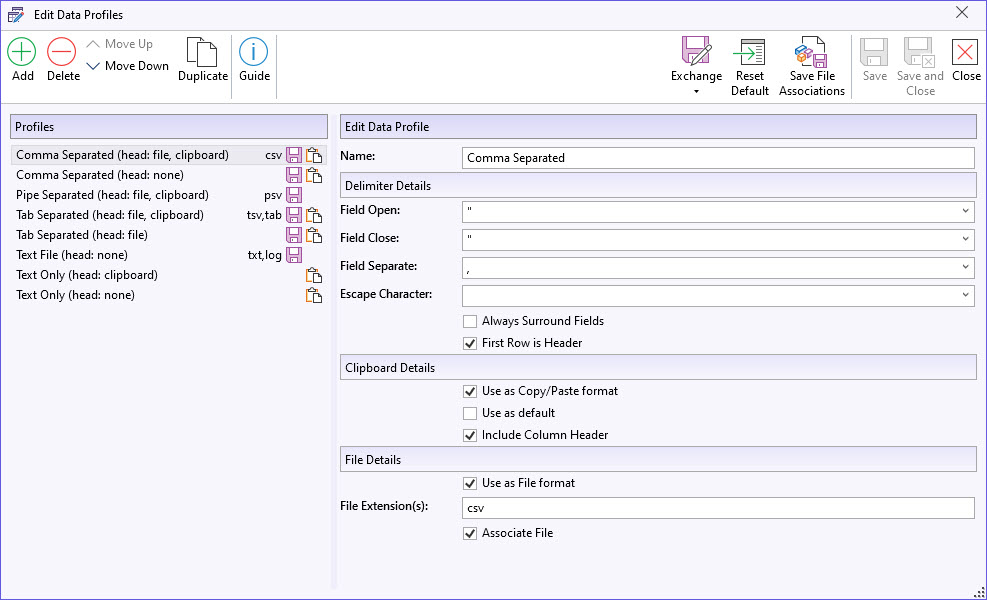
Either locate an existing Profile that matches the needed delimiters, or add a new one by clicking the ‘Add’ button on the tool bar, and check the delimiters are as needed. In the 'File Details' section check the 'Usage as File Format' box, enter the file extension to associate with the Profile (for example 'csv'), and check the 'Associate File' box. For more options see the table below.
Finally clicking the ‘Save’, or ‘Save and Close’ buttons will save the changes.
Saving Profile File Associations in Windows
Configuring a Profile file associations in Rons Data Edit is not the same as setting the same associations in Windows. As such there needs to be a separate step to do this which is done by pressing the 'Save File Associations' button.
Note: Windows might ask you if you want to allow Rons Data Edit to make changes to your computer. The changes in question are file associations, and are nothing to worry about.
Configuring Profiles for Copying and Pasting
It can quite often occur that various applications that support copying and pasting data in a tabular format do so in a variety of wondrous ways. In order to help get data into and out of Rons Data Edit, different named clipboard formats are supported that can be chosen whilst editing.
To configure a Profile to be used as a copy/paste format check the ‘Use as copy/paste format’ box. To configure a Profile to be the default copy/paste format, used when no list of Profiles can be shown, check the 'Use as Default' box.
Not only is the default profile used for normal copying operations, but it is also used when text data is copied from an external applications, and the data being pasted cannot be established automatically. This also includes the preference for weather to treat the first row as column headers or not ('First Row is Header').
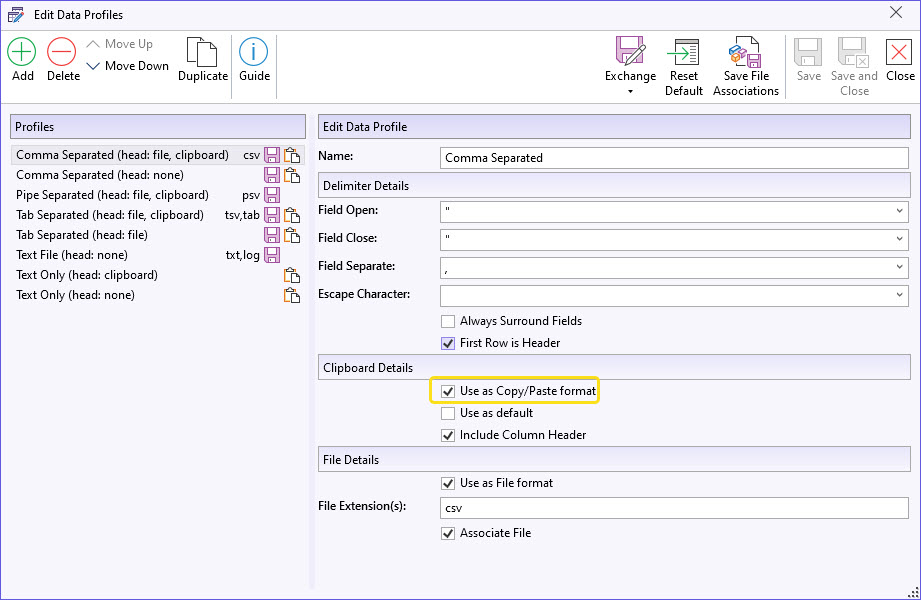
When checked, the Profile names will be added to menus and can now be used for copying by using the ‘Copy’, or the ‘Copy Other’ menu where applicable.
For pasting other formats, Rons Data Edit opens the ‘Text Import’ wizard.
Automatic Delimiter Detection
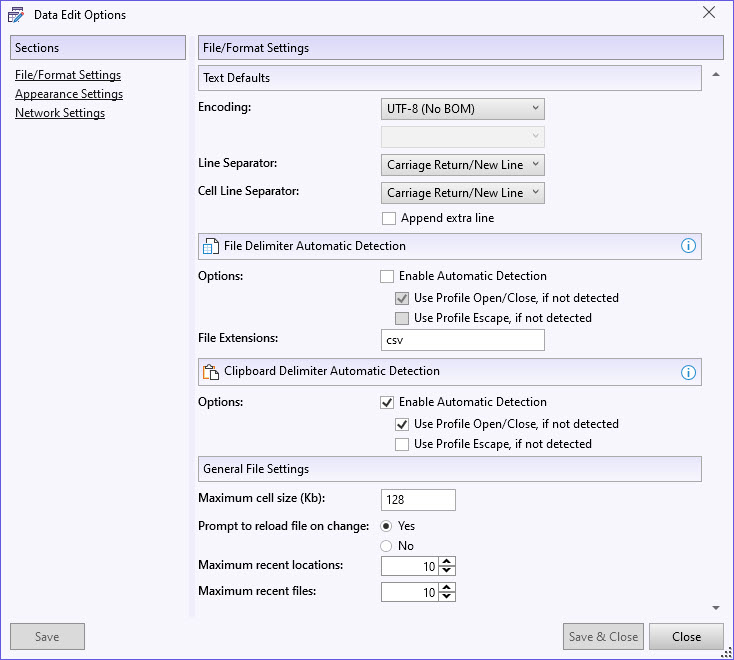
Rons Data Edit has the ability to automatically detect delimiters from a file or clipboard at the point text is ingested. However, due to the wondrous variety in CSV formats that have been implemented over the years, or possibly because there is not enough information in the source text, the detection is 90%-95% accurate. For this reason, automatic detection can be enabled or disabled for both file and clipboard operations.
Automatic detection can be configured in the Data Edit Options window. To open it, select Tools from the menu and click Options.
Fixing Delimiter Problems
One of the most common issues with CSV and other tabular text files occurs when the wrong delimiter is used when opening a file. The data may appear in a single column, columns may be split incorrectly, or the layout may simply not look right.
Fortunately, in most cases the data is not damaged. The file is simply being interpreted using the wrong delimiter settings.
Delimiter problems often appear in one of the following ways:
- All of the data appears in a single column.
- Data is split into too many columns.
- Column headers do not line up with the data.
- Some rows contain more columns than others.
- Text containing commas is split incorrectly.
To determine why a file has opened incorrectly, first check how it has been interpreted in the Document Properties window.
If the file still does not display correctly, one approach is to import it manually. In Rons Data Edit, select New From Import, choose the source file, and follow the Import Wizard.
During the import process you can:
- Select the text encoding.
- Choose the import format (typically Delimited (CSV)).
- Configure how the source file should be parsed by specifying the separator and quote characters used by the file.
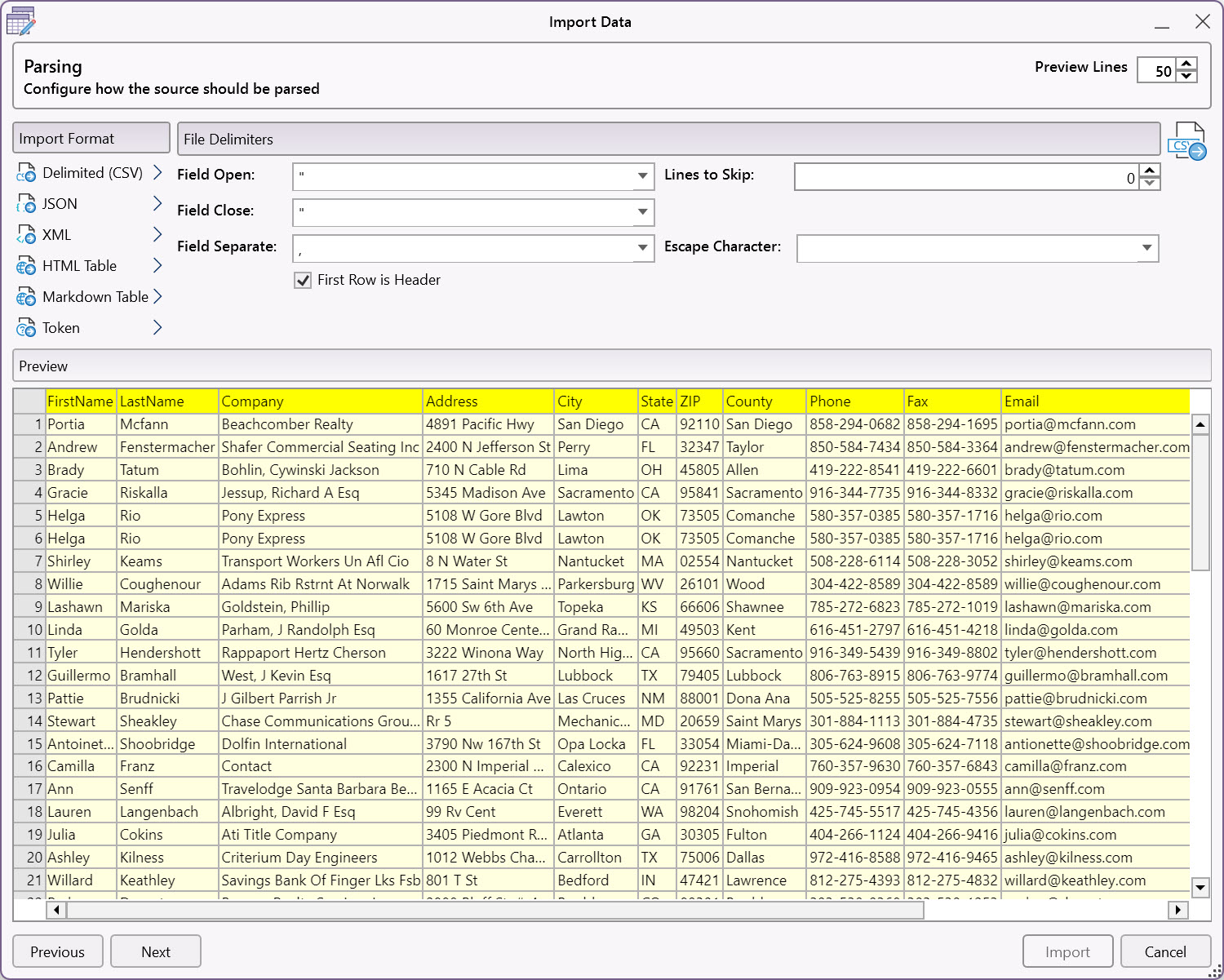
Once the correct settings have been selected, the preview should show the data arranged correctly into columns. Now you just need to Import the file.
In summary, most delimiter problems are caused by:
- The wrong separator being selected.
- The wrong Data Profile being used.
- Incorrect quote character settings.
Once the correct Profile and delimiter settings have been applied, the data will usually display correctly without any further changes.
Edit Data Profiles Options
The Menu Buttons
The buttons on the menu have the following actions.
| Button | Description |
|---|---|
| Add | Adds a new named Profile. |
| Delete | Deletes the selected Profile(s). |
| Move Up | The formats are presented in a menu, so it makes sense for the most used options to be at the top. The move up/down buttons allow the order to be changed. |
| Move Down | |
| Duplicate | Duplicates the current named Profile(s). |
| Reset Default | Restores a reasonable set of default Profiles and their options. |
| Save File Associations | Set the Windows file associations (see below). |
Profile Settings
Each Profile can be selected individually and its options changed.
| Option | Description | Comments |
|---|---|---|
| Field Open | A character to indicate to Rons Data Edit when a field in the tabular data begins. | Most of the time field open and close characters are the same and are quotes (“), even when the separator character changes. Sometimes brackets () or square brackets [] are used for field open and close. |
| Field Close | A character to indicate to Rons Data Edit when a field in the tabular data ends. | |
| Field Separate | A character to indicate to Rons Data Edit when to move to the next field in the tabular data. | Comma (,) is of course the most common, but sometime semi-colon (;) or pipes (|). |
| Always use field open/close | Rons Data Edit will only add field open and close characters if the field text contains a separator character or a newline. This option overrides that and always uses open and close characters. | This option is only used when saving a tabular text file. |
| First row is header row | If checked the first full row of a tabular file is treated as the table column names, rather than the first line of the text data. | This option is only used when loading a tabular text file. |
| Use as Copy/Paste format | If checked this Profile is included in the various copy menus. | |
| Use as default | If checked the current Profile is used as the default copy format, when no other Profile is selected, for example using the copy shortcut. | |
| Include Column Header | Include the document header row in the data copied to the clipboard. | |
| Use as File Format | If checked this Profile is included in the various file operations and menus. | |
| File Extension | The file extension to associate with this Profile and use when the file is loaded. | For example ‘tsv’. |
| Associate File | If checked, then Rons Data Edit is used by Windows to open files with the extension in the ‘Extension’ box above. |
Related Information
- A Perfect Excel alternative to handle CSV files
- How to open and view a CSV file
- Rons Data Edit for e-Commerce
- Text Encoding and Languages in CSV Files
- What is a CSV File
- What is the best CSV Editor
- What is the Difference between Rons Data Edit and Rons Data Stream
CSV Editing
Rons Data Edit


