
How To Pivot Columns in a CSV File - Rons Data Edit
Pivoting columns is a process that transforms the structure of a data table by converting values from multiple columns into one or more columns while increasing the number of rows to accommodate the additional data. This allows you to reorganize the data, making it easier to perform certain types of analysis and visualization, or just clean it up.
Pivoting Columns by Example
Using Rons Data Edit (free version here: Download) open the example file included with the article as shown below.
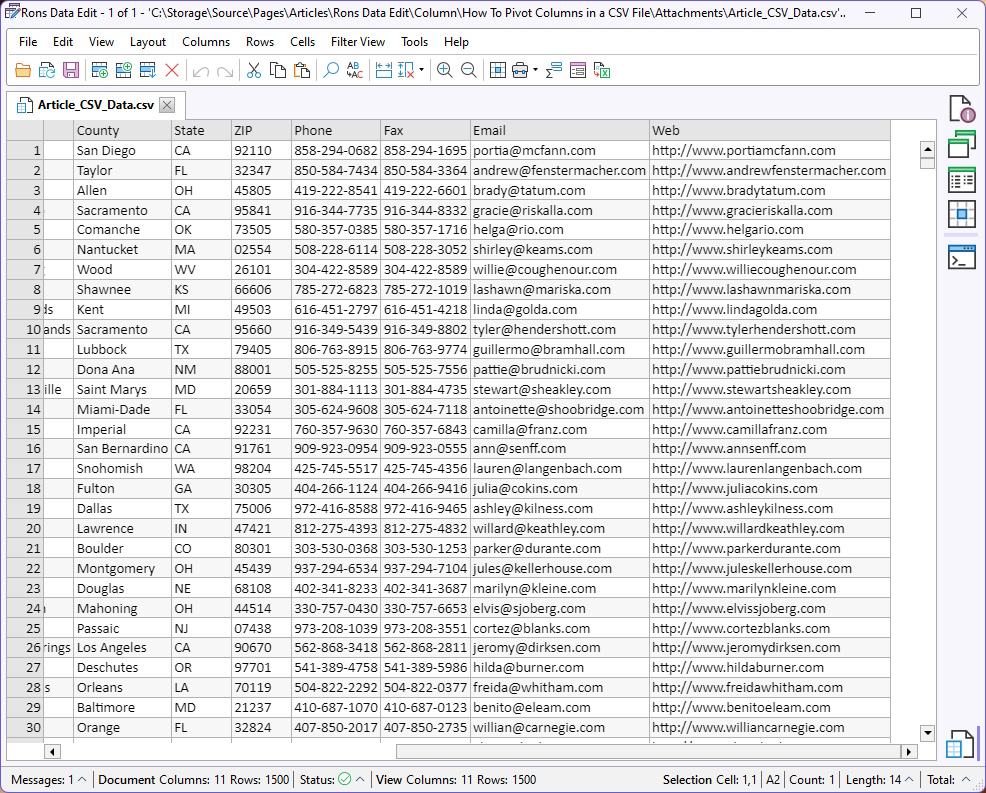
Note that end last four columns are all methods of communication, that could be categorized into:
- Phone
- Fax
- Web
Next, open the Columns > Column Tools > Pivot panel.
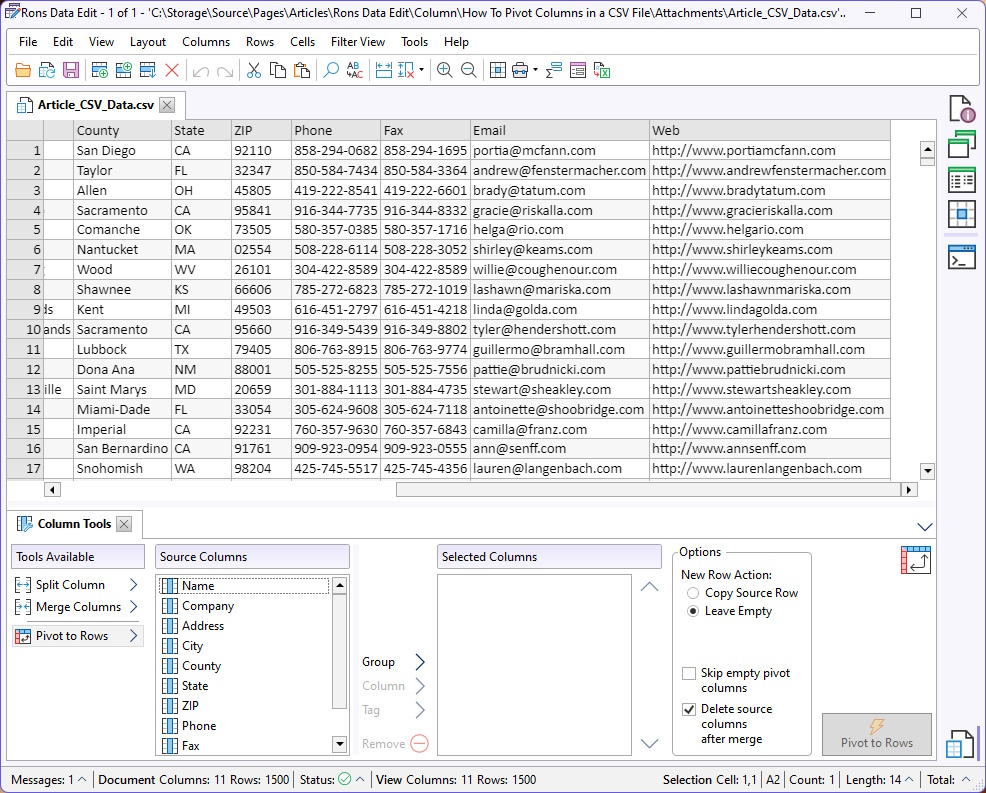
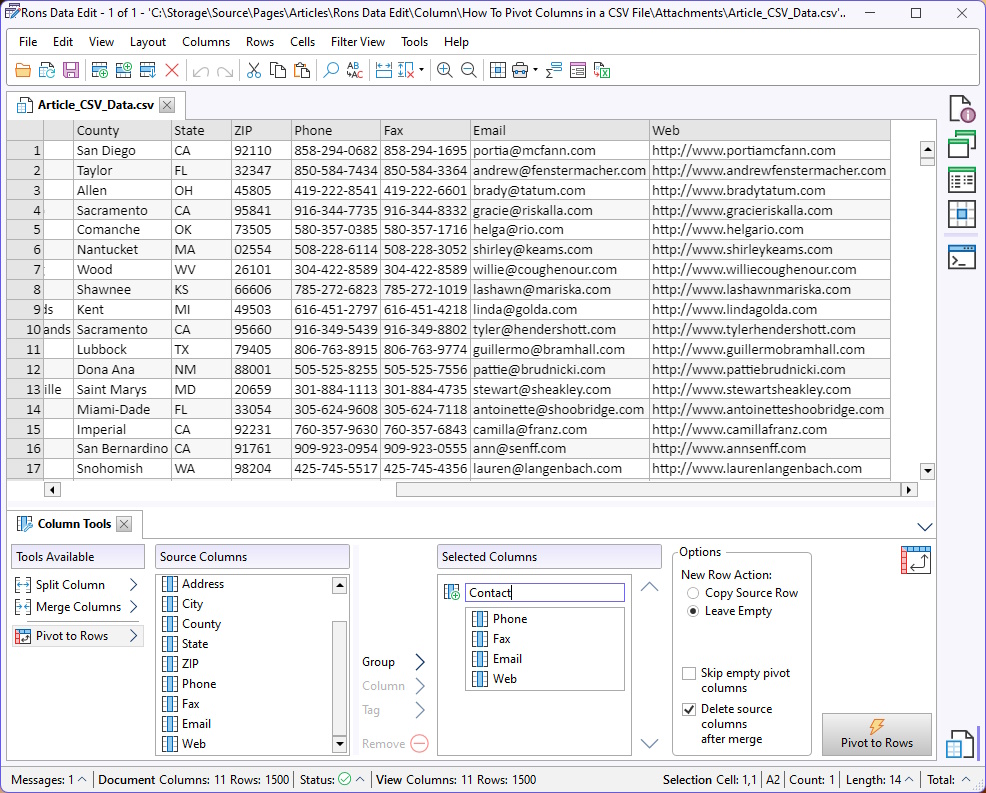
We want the Phone, Fax, Email, and Web columns to be combined into a single column called Contact. Highlight the columns in the Source Columns and click Group to add them to a new group.
In this case, a group represents a new column that will contain the data from the selected columns, pivoted into rows. More than one group can be added.
We also need a way to identify the data that has been pivoted from each original column, so we are going to add another column called Type that contains labels for the data we are pivoting above. These labels are added using Tags. Create another group called Type and add tags that correspond to each column being pivoted.
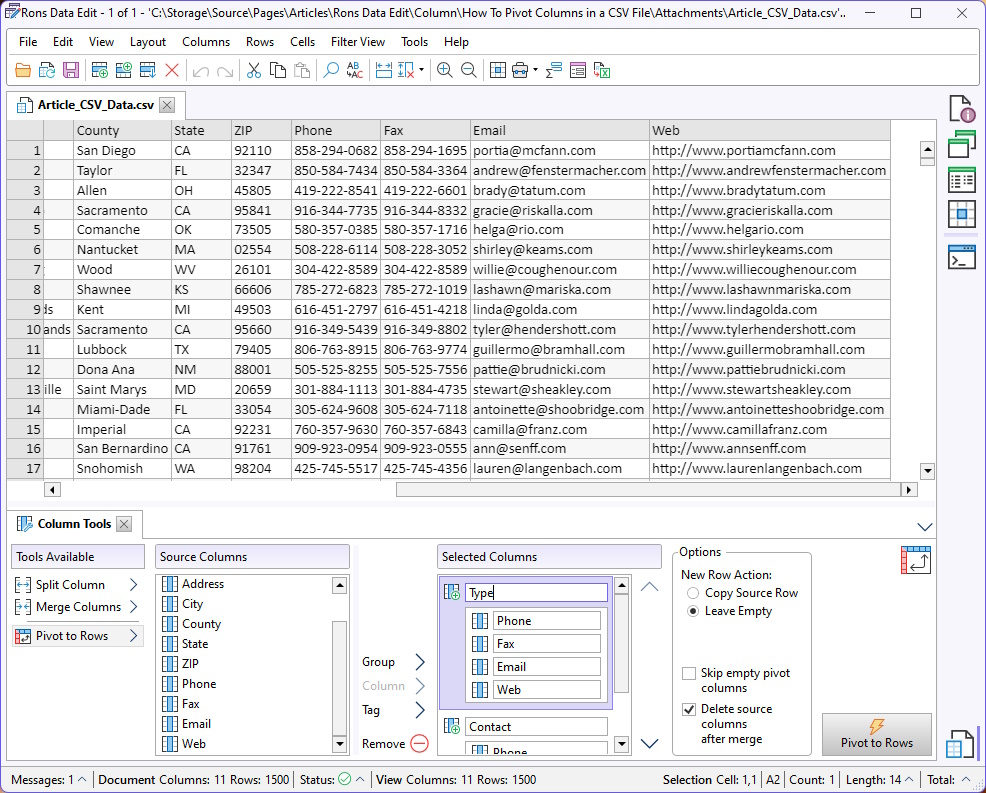
Note: The column groups (or new columns) can be moved up or down using the arrow buttons to change their order.
Once the Type and Contact columns have been defined, click Pivot to Rows to apply the transformation.
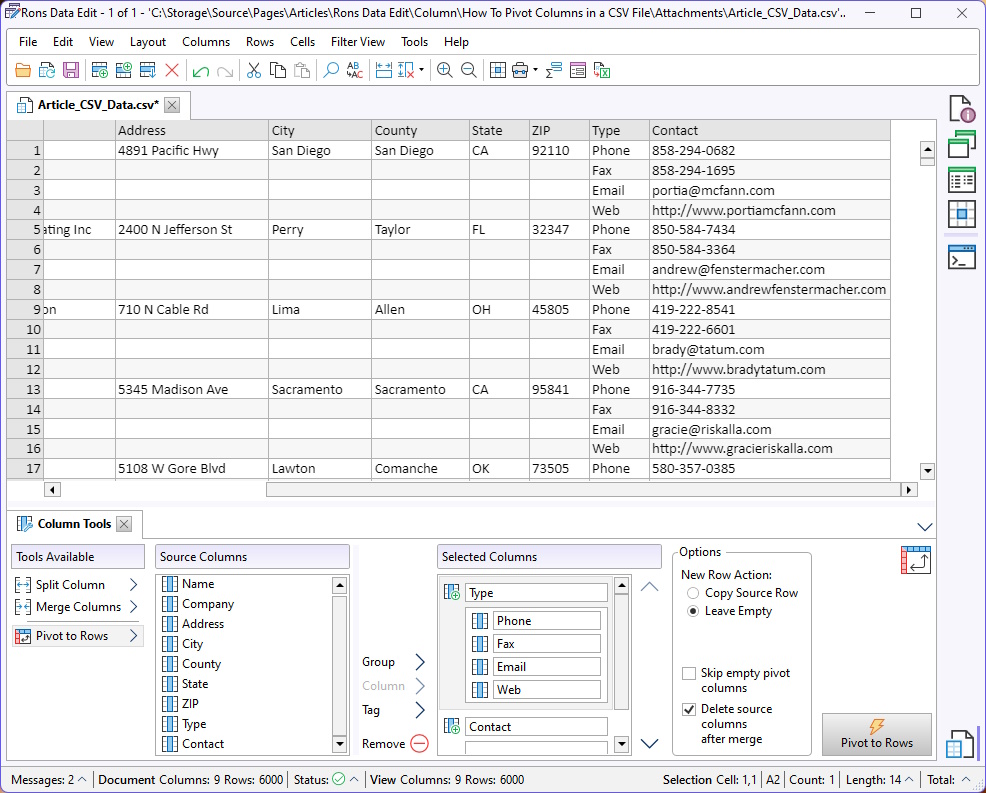
The data has now been successfully pivoted into a more structured format.
The New Row Action was set to Leave Empty so the rows that were added as part of the pivot are blank. This makes our example clearer. If the New Row Action option had been set to Copy Source Row then the cells in the newly created rows would have been populated with data from the source row to create a complete data table.
Finally
If you have a question, send us a message, or visit the Rons Place Software Website to learn more about Rons Data Edit.
Attachments
 Article_CSV_Data_Pivoted.csv
Related Information
- A Perfect Excel alternative to handle CSV files
- How to open and view a CSV file
- Rons Data Edit for e-Commerce
- Text Encoding and Languages in CSV Files
- What is a CSV File
- What is the best CSV Editor
- What is the Difference between Rons Data Edit and Rons Data Stream
CSV Editing
Rons Data Edit


