
How To Merge & Split Columns - Rons Data Edit
Combining and splitting columns in a CSV file is easy when using the right application. In this guide, we explain how to perform these tasks in Rons Data Edit. Rons Data Edit can be downloaded for free from the following page: https://www.ronsplace.ca/products/ronsdataedit.
Once installed, you can open your CSV file by selecting Open Document from the File menu or by clicking Open Document on the application's Start Page.
Merging Columns in a CSV File
1. Open the 'Column Tool' panel
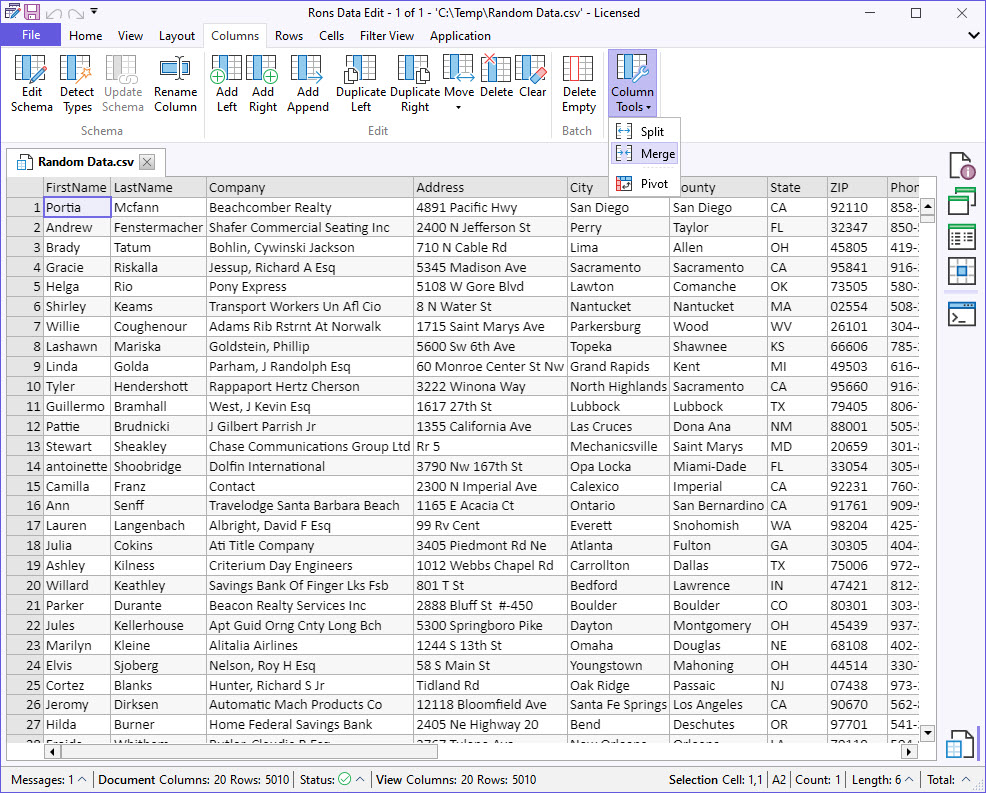
Open the Column Tool Panel from the Column menu. Once the panel open, select Merge Columns from the available tools displayed.
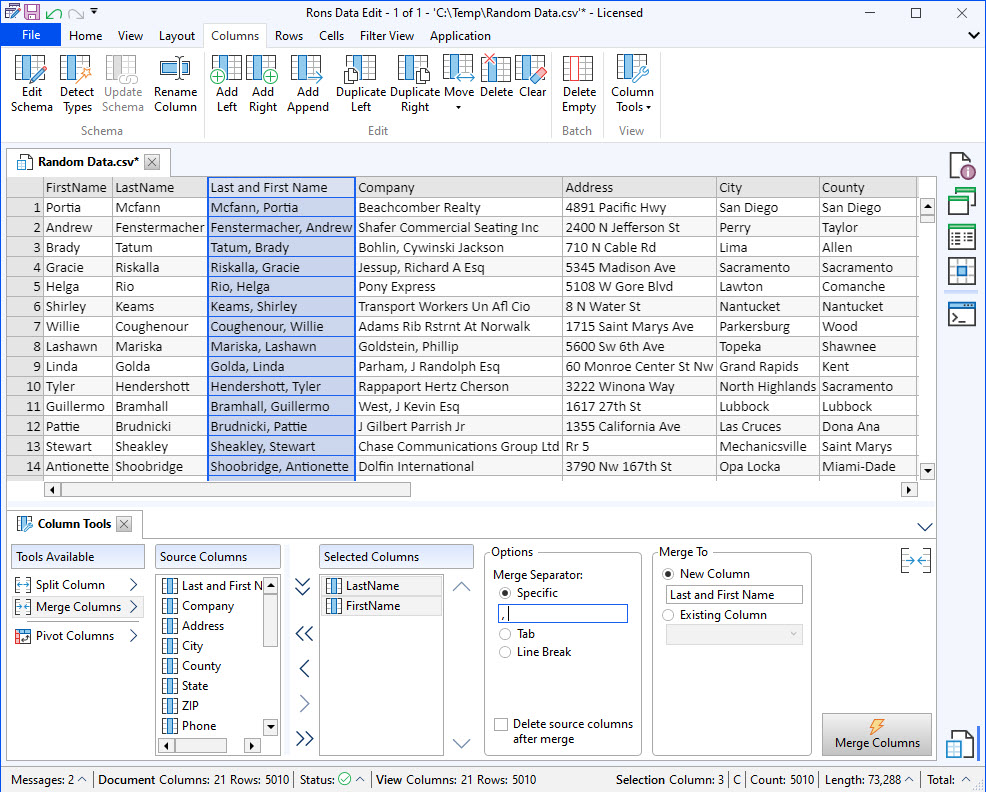
2. Set the appropriate 'Merge Columns' options
See below for the listing of the settings and their explanation.
|
Description |
Options |
Explanation |
| Tools Available | Several tools are displayed. 'Merge Columns' should be selected. | |
| Source Columns | In the 'Source Columns' section, all the columns of the document are listed and can be easily selected and transferred by clicking on the arrows to the next section ('Selected Columns'). | |
| Selected Columns |
The 'Selected Columns' section displays the columns that are going to be merged together. The two Up and Down arrows on the left side allow to move the columns and give accordingly the proper merging order of the data. |
|
| Options | ||
|
Merge Separator |
Specific |
If checked, type the desired separator in the field (for example a comma, a space, a dash etc.) between the two merged columns data. |
| Tab |
If checked, a Tabular space will separate the data of the two merged columns. |
|
| Line Break |
If checked, the data of the two merged columns will show on two different lines. Note that under the 'Single Line' viewing mode only one line will be displayed but the blue font colour indicates that there are more lines in the cell.To be able to see all the lines change the View mode to 'Multi Line' under the View tab in the ribbon bar. |
|
|
Delete source columns after merge |
If checked, the columns that were selected to merge will be automatically deleted and only the merged column will show. |
|
| Merge to | ||
|
New Column |
If checked, a new separate column will be created with the merged information. This new column can be (re)named just below this option in the dedicated field or left as is with <New Column> as the header name. |
|
|
Existing Column |
If checked, and if one of the existing column is selected from the drop down menu just below this option, the merged data will overwrite the data of that selected column. |
|
3. Apply the changes
Click the 'Merge Column' button to apply the changes. When satisfied with the changes, make sure to save the document.
Note: Any action can easily be reverted by clicking on the 'Undo' button on the menu on the top left corner of the main window.
Splitting Columns in a CSV File
1. Open the 'Column Split' Tool
Open the Column Tool Panel from the Column menu. Select Split Column on Character or Split Column on Position.
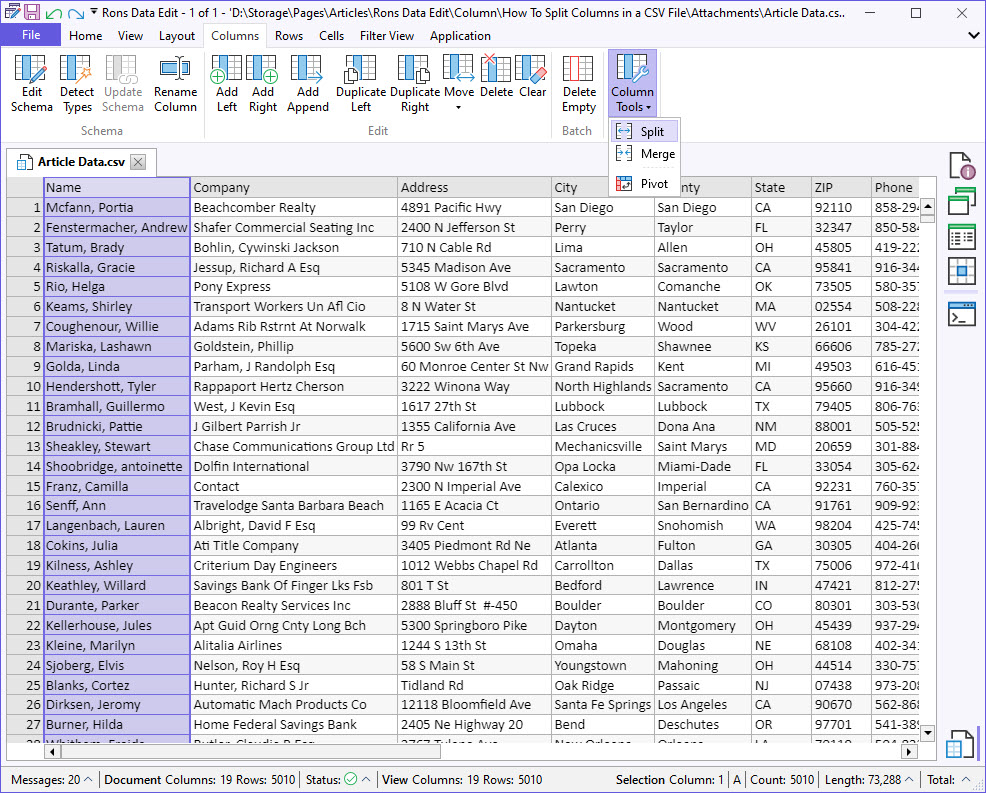
1. Split Column on Character
Split Column on Character is used when values are separated by a specific delimiter, such as a comma, hyphen, tab, or line break. You can also use a regular expression to split data based on custom patterns.
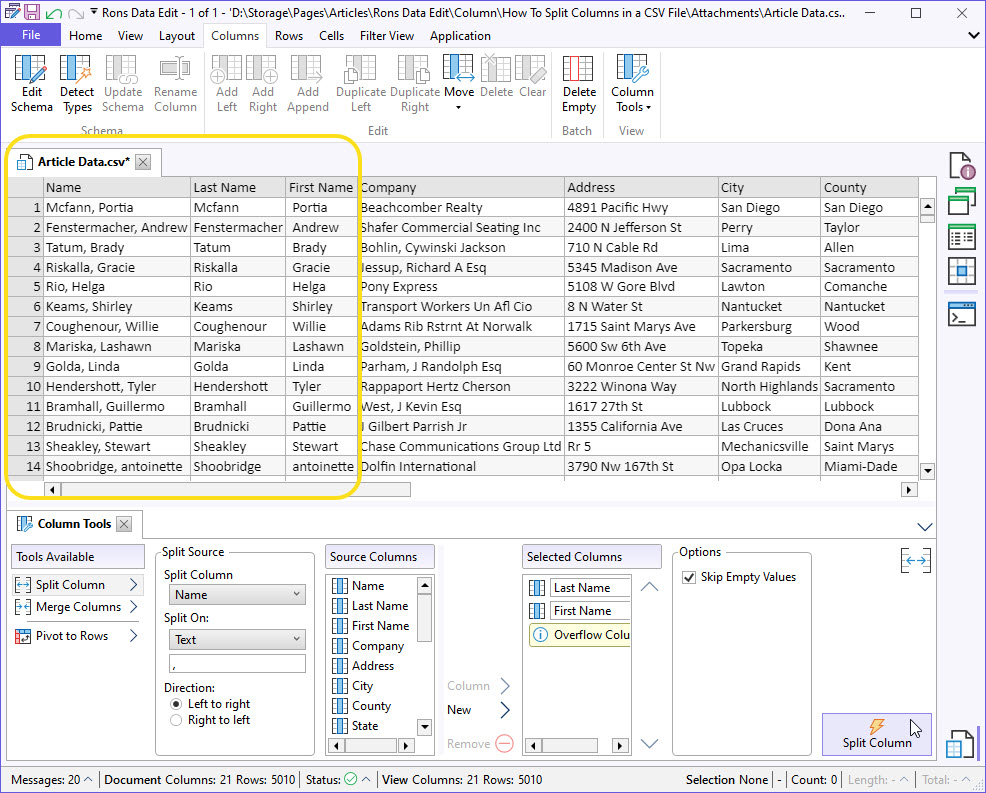
2. Split Column on Position
Split Column on Position is used when values need to be split at fixed character positions. Specify the start and end positions using numeric values to determine where the column data should be split.
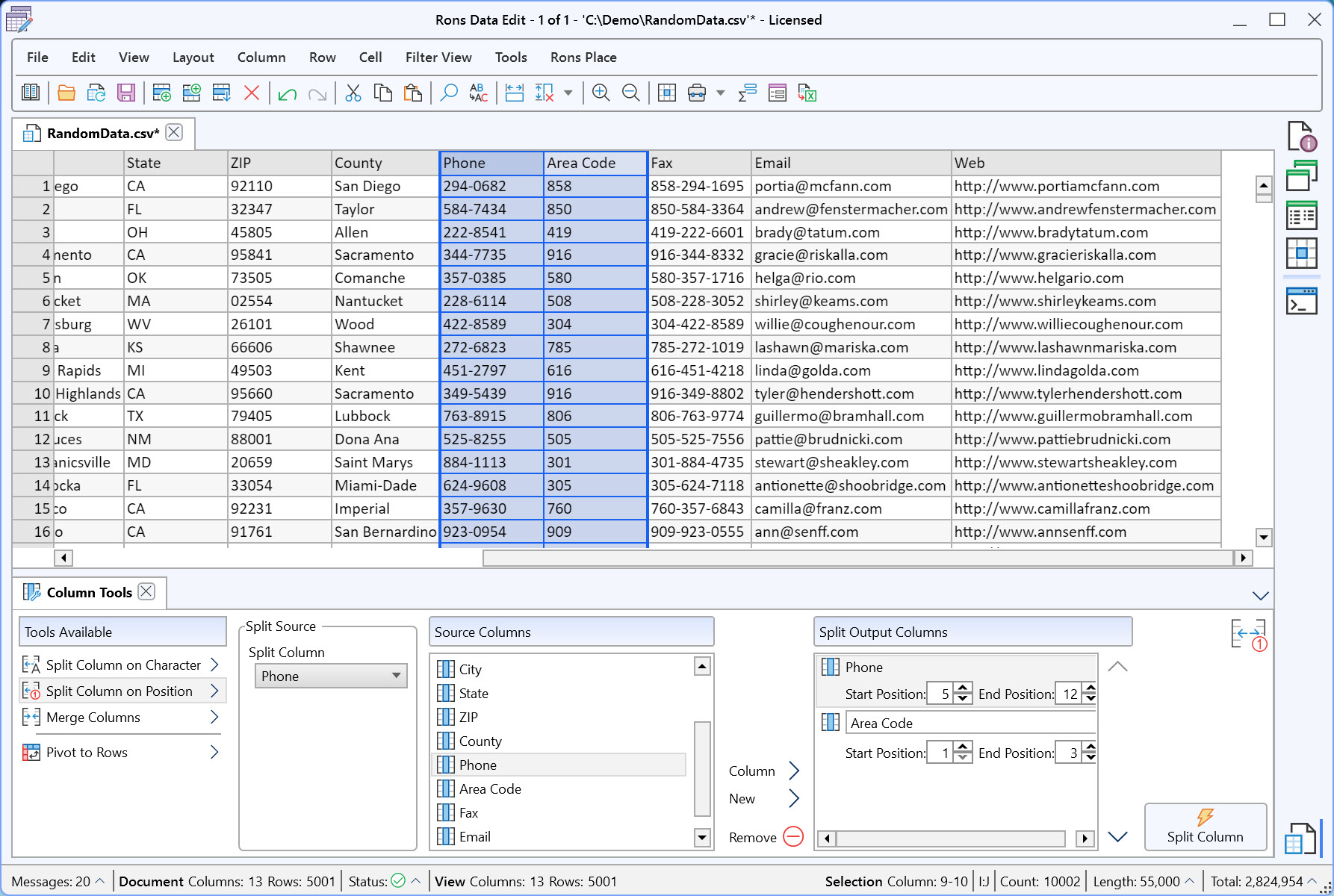
2. Apply and save the changes
Click the 'Split Column' button to apply the changes. When satisfied with the changes, make sure to save the document.
Finally
If you have a question, send us a message, or visit the Rons Place Software Website.
Related Information
- A Perfect Excel alternative to handle CSV files
- How to open and view a CSV file
- Rons Data Edit for e-Commerce
- Text Encoding and Languages in CSV Files
- What is a CSV File
- What is the best CSV Editor
- What is the Difference between Rons Data Edit and Rons Data Stream
CSV Editing
Rons Data Edit


